Antivirus
How to Install Kaspersky Antivirus on Windows
Protect your PC against viruses and malware
Installation and activation guide for Kaspersky Antivirus on Windows. Complete protection against online threats.
4 steps
2 views
Updated on 23/07/2026
shield
In summary
Installation and activation guide for Kaspersky Antivirus on Windows. Complete protection against online threats.
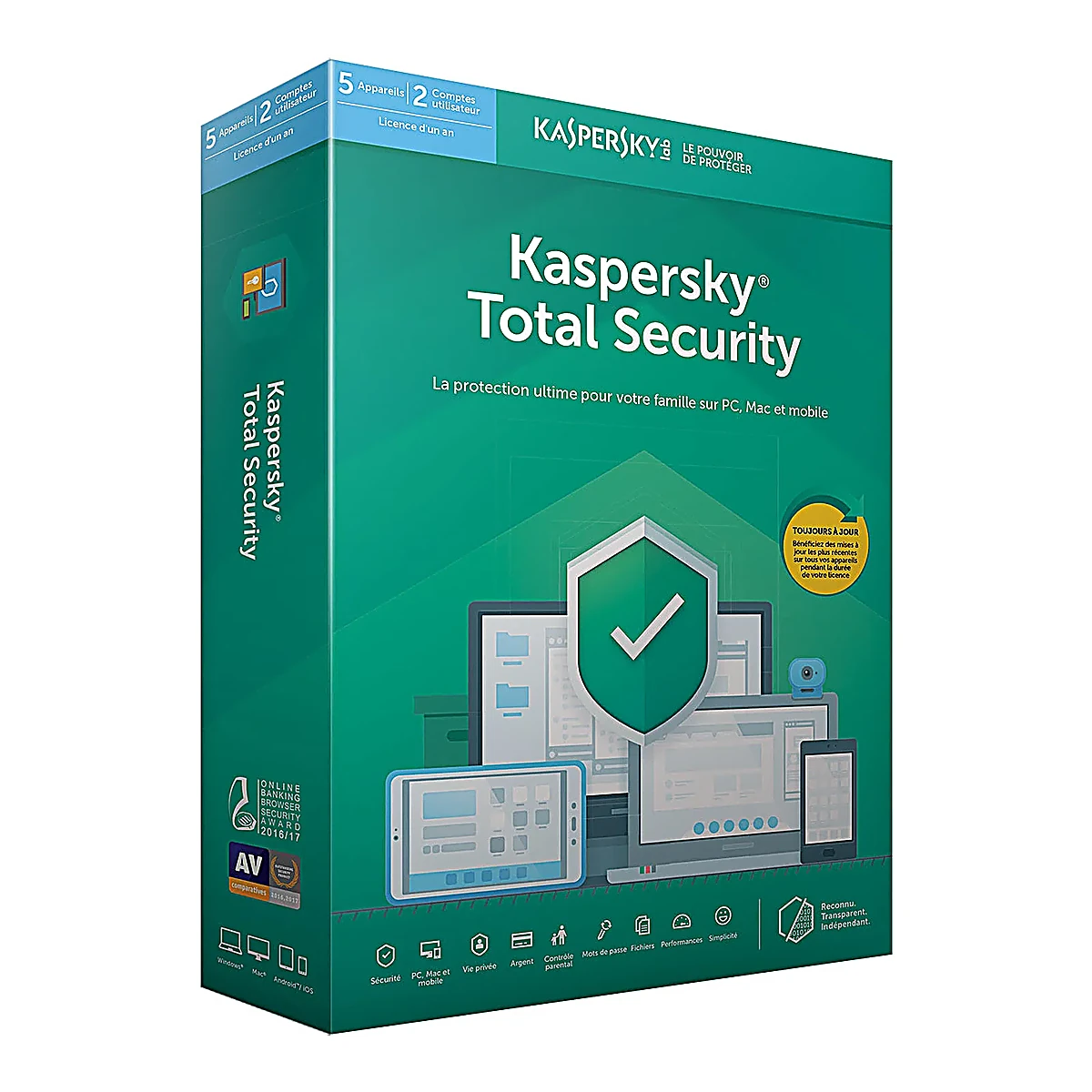
Kaspersky is one of the best-performing antivirus on the market. This guide walks you through installation and activation with your RDS Hub license key.
Steps to follow
1
Download Kaspersky
Download Kaspersky from the official website or use the link provided in your RDS Hub email. The file is about 200 MB.
Placeholder — Screenshot to add here
Tip:
Temporarily disable Windows Defender to avoid conflicts during installation.
2
Install the antivirus
Run the installation file and follow the wizard. Accept the license terms and choose 'Standard installation'.
Placeholder — Screenshot to add here
Tip:
Installation takes 5-10 minutes.
3
Activate with your key
On first launch, Kaspersky asks for an activation key. Enter the 20 characters of your RDS Hub key (format XXXXX-XXXXX-XXXXX-XXXXX).
Placeholder — Screenshot to add here
Tip:
Copy-paste the key to avoid errors.
4
Run a full scan
After activation, run a 'Full Scan' to verify your PC is threat-free. This can take 30-60 minutes.
Placeholder — Screenshot to add here
Tip:
Schedule a weekly scan in settings for continuous protection.